When the Words in the Picture Have to Be Right
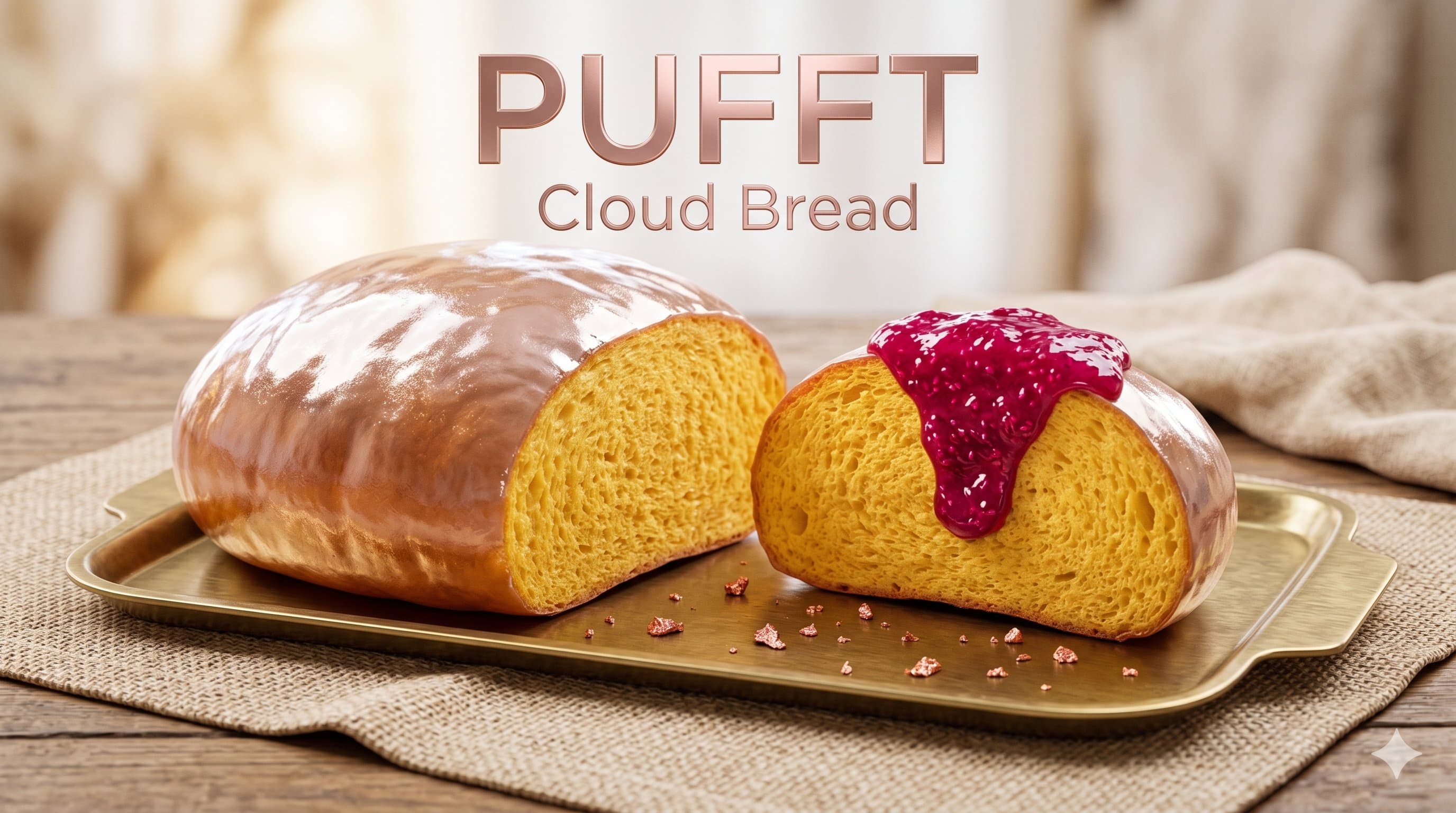
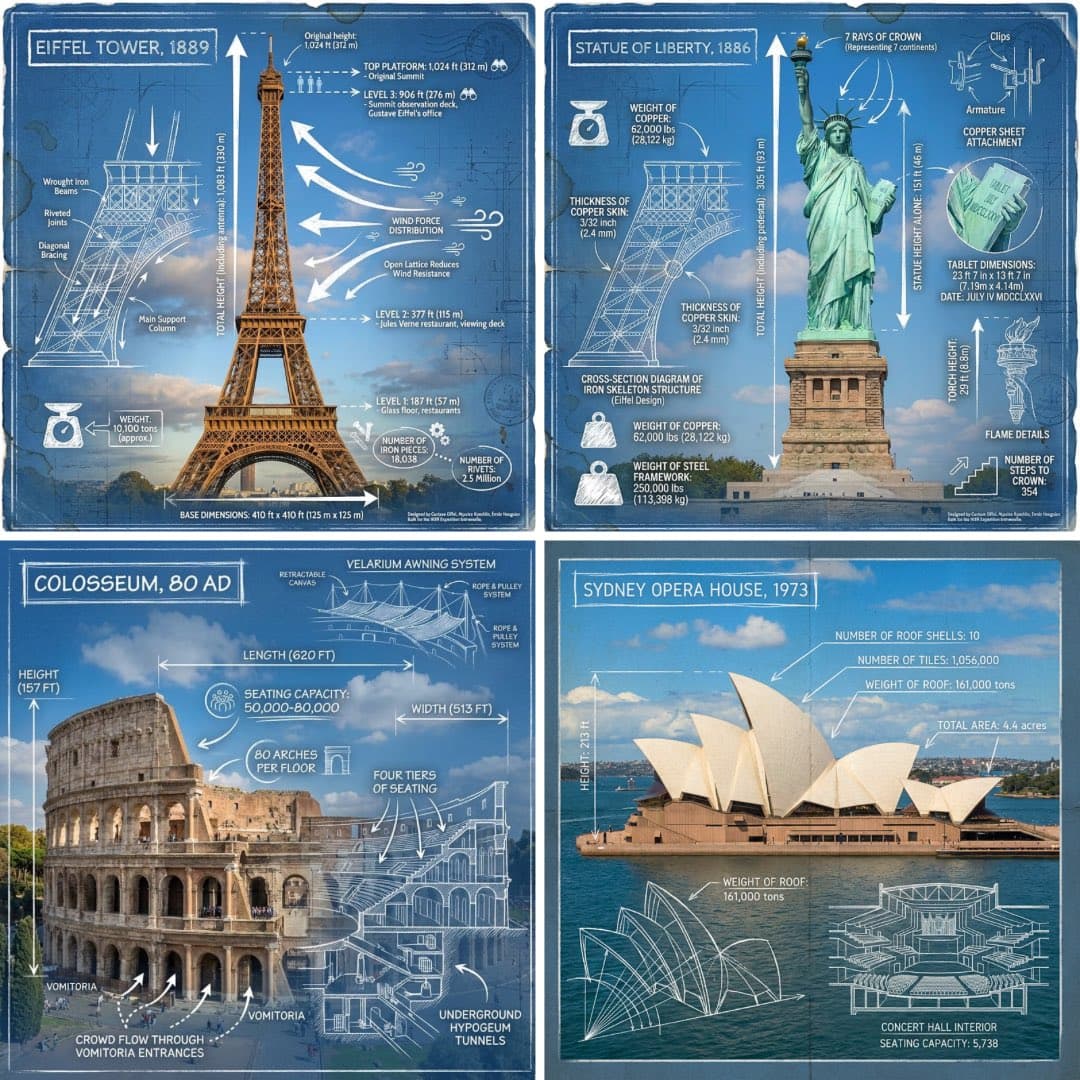
Most image models treat text as texture. Ask for a poster with a headline and you get letter-shaped marks that fall apart the moment anyone reads them — fine for a mood board, useless for a client. Nano Banana Pro is Google’s answer to that, and it is the reason this model is here: headline copy, body paragraphs, price tags, chart labels, and non-Latin scripts come back spelled the way you typed them. Everything else about it — 4K, eleven ratios, editing with references — follows from being the model you hand a real layout brief to.
Write the Brief Like a Spec, Not a Wish
The prompt box here holds 10,000 characters — five times what GPT Image 2.5 takes in this workspace. That budget is the feature. You are not supposed to compress the brief into keywords; you are supposed to write the thing out. A prompt that lands on the first try looks more like this:
A2 event poster, portrait, dark charcoal background with a single
warm spotlight from the upper left.

Centre of frame: a vintage brass microphone on a stand, three-quarter
view, shallow depth of field.

Text, in order top to bottom:
- "NIGHT SESSIONS" across the top, bold condensed sans, all caps,
  letter-spaced wide, warm off-white
- "Live jazz every Thursday" directly under it, regular weight,
  sentence case, 40% smaller
- "21:00 — 01:00" bottom left, small caps, muted grey
- "48 Sackville Street" bottom right, same treatment as the time

Leave the lower third uncluttered so the two bottom lines have air.
No other text anywhere in the image.
Note what is doing the work: every string that must appear is in quotation marks, every string has a position, and the typographic treatment is named. That is the difference between a poster you can send and one you have to redraw in a design tool.
Text Habits That Pay Off
Instead of
Add a headline about the sale
Write
The words "FINAL WEEKEND" across the top third, bold condensed caps
Instead of
Put some Japanese text on the packaging
Write
The label reads "緑茶 / GREEN TEA", Japanese above the English, same size
Instead of
Include the price
Write
"£24.00" in the lower right corner, small, aligned to the product edge
Instead of
Make it look like an infographic
Write
Four panels in a 2×2 grid, each with its own caption underneath in the same typeface
Pick the Canvas Before You Write
Text-heavy images are unforgiving about reframing — a headline composed for 16:9 does not survive a crop to 9:16. Choose the ratio for where the image is actually going, then describe the layout inside that shape.
| Where it goes | Ratio | Resolution to pick |
|---|---|---|
| Poster or print layout | 2:3 or 3:4 | 4K — small type needs the pixels |
| Stories, Reels, Shorts cover | 9:16 | 2K is plenty for a feed |
| Site hero or banner | 16:9 or 21:9 | 2K, or 4K if it runs full-bleed |
| Social post or product listing | 1:1 or 4:5 | 1K to iterate, 2K to publish |
| Slide or infographic | 16:9 or 5:4 | 4K — captions have to stay legible |
Every ratio renders at every resolution — unlike GPT Image 2.5, there are no 1K-only shapes to work around. Editing an existing image? Leave the ratio on Auto and it keeps the source framing.
When to Reach for Something Else
This is the most expensive image model in the workspace, and it does not do everything. Three cases where another model is the better call:
You need a transparent cut-out
Nano Banana Pro has no background control at all. You can choose PNG as the output format, but the background will be filled. For a real alpha channel, use GPT Image 2.5 with Background set to Transparent.
You are still exploring, and the image has no text
At 1K this model costs 30 credits against GPT Image 2.5 Flare's 10. For mood boards, thumbnails, and early direction-finding where nothing has to be spelled correctly, three Flare renders beat one of these.
You want an unusual ratio
Eleven ratios here, and 27:16, 16:27, 9:8, and 8:9 are not among them. GPT Image 2.5 offers those, at 1K only.
Switching costs nothing but a second generation — the AI Image Generator keeps your brief when you change models, and Image to Image keeps your uploads too — only the ratio and resolution reset, to whatever the model you picked starts from. Run the brief on both and keep the better render. When the finished frame should move, send it to Image to Video — rendered text carries into the clip.
FAQ
What is Nano Banana Pro?+
How long a prompt can I write?+
Does it handle languages other than English?+
Can it produce a transparent PNG?+
Can it edit an image I upload?+
What resolutions and aspect ratios are supported?+
How many credits does one image cost?+
Can I use the images commercially?+
Give It the Long Version
Find a brief you would normally trim down to fit a prompt box — the one with the headline copy, the layout notes, and the language it has to be in — and paste the whole thing.