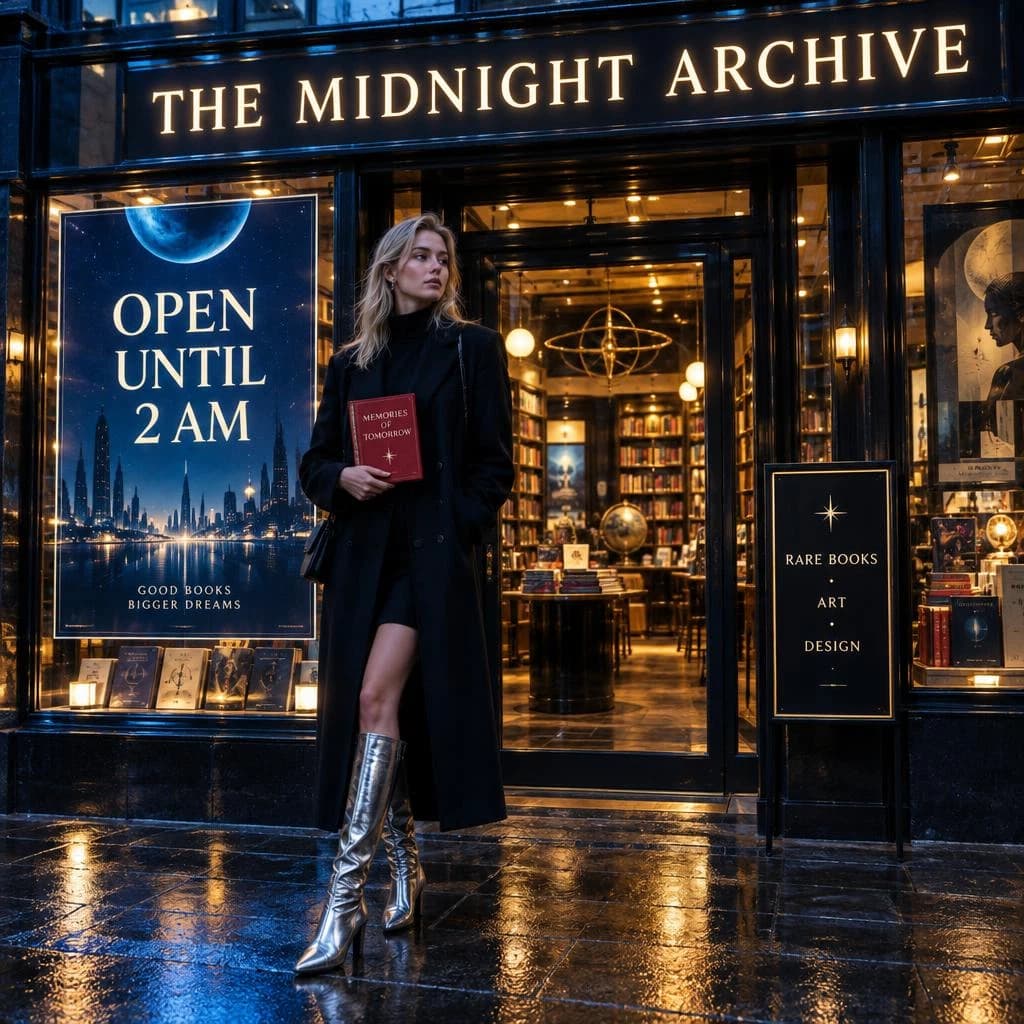

GPT Image 2.5 Is Two Models, and Picking the Right One Is the Whole Trick
OpenAI ships GPT Image 2.5 as a pair. Flare is the fast, lighter model — sharper than GPT Image 2 at roughly half the latency, built for social content, product shots, thumbnails, and anything you generate in volume. Sunburst is the heavier model tuned for quality and for precise, repeatable edits — the one you reach for when the image is going into a campaign, a listing, or print. Both render 1K, 2K, and 4K, follow instructions literally (the clock reads 5:15, the glass is half-full), render legible text, and can return a transparent background. Both take a text brief, or a text brief plus reference images to restyle, extend, or extract from.
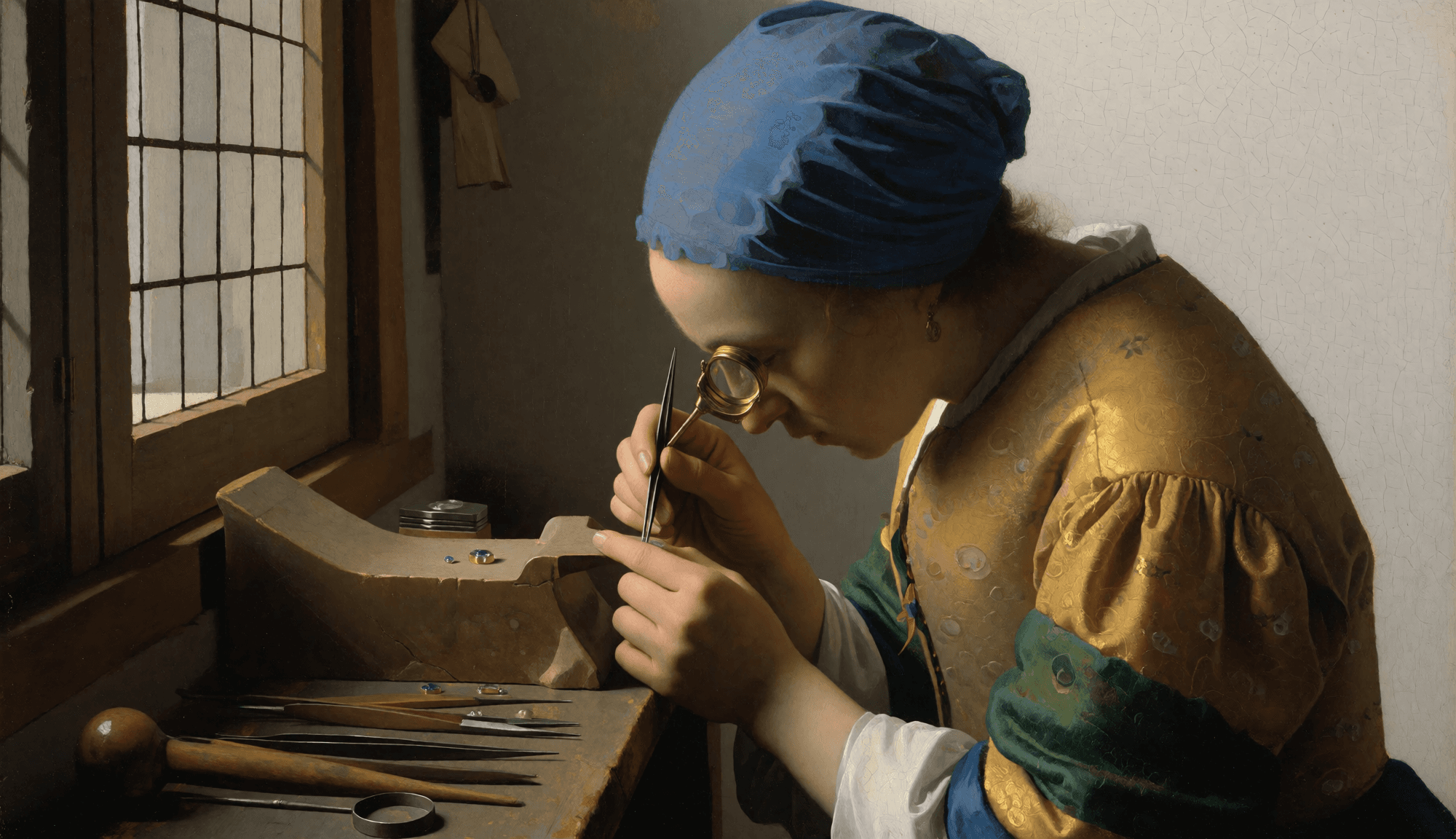

Flare vs Sunburst at a Glance
| Flare | Sunburst | |
|---|---|---|
| Built for | Volume and speed — social, thumbnails, product shots, prototypes | Finished work — campaign creative, hero product imagery, print |
| Quality | Above GPT Image 2 | Highest in the family; cleaner detail and fewer artifacts |
| Speed | About half the latency of GPT Image 2 | Slower; trades time for quality |
| Editing | Solid image-to-image and restyling | Tightest control across multi-step edits; preserves what you did not ask to change |
| Output | 1K / 2K / 4K, 13 aspect ratios, transparent background | 1K / 2K / 4K, 13 aspect ratios, transparent background |
| Credits per image | Same as Sunburst — priced by resolution, not by model | Same as Flare — priced by resolution, not by model |
What You Get With GPT Image 2.5
Prompts are followed literally
GPT Image 2.5 fills the glass to the level you asked for, sets the clock to the time you wrote, and puts the details you listed in the frame. Fewer re-rolls to get the composition the brief actually described.
Text that reads
Headlines, labels, price tags, and packaging copy render legibly and spelled as written — the difference between a usable ad mock and a placeholder.
Edits that keep the rest intact
Upload up to four reference images and describe the change. The model swaps the background, restyles the subject, or extracts it onto transparency while leaving everything else where it was — Sunburst is the stricter of the two here.
Up to 4K, thirteen ratios
Square for the grid, 2:3 and 3:2 for print, 16:9 and 21:9 for banners, 9:16 for stories, plus 27:16, 16:27, 9:8, and 8:9 at 1K. Pick 1K to iterate and 4K to deliver.
Transparent backgrounds on demand
Set Background to Transparent to get a cut-out PNG straight from the model. At 2K and 4K describe an isolated subject with no backdrop or shadow so the alpha comes back clean.
How to Generate or Edit an Image in Three Steps
Choose Flare or Sunburst
Start with Flare while you are exploring — it is fast and costs the same per image. Switch to Sunburst for the version you will ship, or whenever an edit has to be exact.
Write the brief, or add images and describe the change
For text to image, name the subject, style, lighting, composition, and any text to render. For image to image, add one to four images and say what should change — the first image sets the composition, the rest act as references.
Set ratio, resolution, and background, then generate
Pick the aspect ratio your channel needs, 1K to 4K, and Auto, Opaque, or Transparent. The credit cost shows before you submit; the image appears with a download link when it is ready.
From Still to Motion
A GPT Image 2.5 render makes a clean first frame. Download it, then drop it into Image to Video to animate it with LTX 2.5, Seedance, MiniMax H3, or Kling — the composition, colours, and any rendered text carry into the clip. Generating the key visual and the motion in the same workspace keeps the look consistent across the whole set.
FAQ
What is the difference between GPT Image 2.5 Flare and Sunburst?+
What resolutions and aspect ratios are supported?+
Can GPT Image 2.5 edit my own image?+
How do I get a transparent background?+
Does Sunburst cost more than Flare?+
Are generated images moderated?+
Make the Image With GPT Image 2.5
Draft on Flare, finish on Sunburst. Pick the ratio, pick the resolution, and download a file that is ready to post, list, or print.